
CatRealm Self-Hosted Server
Welcome to the CatRealm self-hosting documentation. Get your own CatRealm chat server running in minutes — on Windows, Linux, or through a Pterodactyl panel.
CatRealm is an open-source, self-hostable chat platform with text channels, voice chat, roles, permissions, and more. These docs cover everything you need to deploy and configure your own instance.
Dependencies
CatRealm requires very few dependencies to run:
| Dependency | Version | Notes |
|---|---|---|
| Node.js | v20 or higher | v24 LTS recommended for best compatibility |
| Git | Any recent version | Optional — required only for auto-update feature |
Start.bat / Start.sh) can automatically detect and install missing dependencies for you.OS Support
| Platform | Support | Notes |
|---|---|---|
| Windows 10 / 11 | Supported | x64 recommended. Uses Start.bat |
| Linux (Ubuntu, Debian, etc.) | Supported | Ubuntu 20.04+, Debian 10+, or any modern distro |
| macOS | Experimental | Uses Start.sh — works but not officially tested |
| Pterodactyl | Supported | Official egg available — see Pterodactyl section |
Windows Server
The easiest way to get started on Windows — no terminal required.
Manual Install
Download the latest release as a ZIP, or clone with Git:
git clone https://github.com/VanillaChan6571/CatRealm-SelfHostable-Server.git
cd CatRealm-SelfHostable-ServerDouble-click Start.bat in the folder. If Node.js is missing or outdated, depinstaller.bat will launch automatically — it uses Windows Package Manager (winget) and may request a UAC prompt.
On first launch the server will create a .env file and open it in your default editor. Set at minimum your SERVER_NAME and any optional settings, then save.
After saving your config, run Start.bat again. The server will start on port 40500 by default.
Open a browser and go to http://localhost:40500. To allow other devices, update SERVER_URL in your .env to your local IP.
Linux Server
Run CatRealm on any modern Linux distribution.
Auto Installer
The fastest way to install CatRealm on Linux is the hosted auto-installer:
bash <(curl -fsSL https://raw.githubusercontent.com/VanillaChan6571/CatRealm-SelfHostable-Server/refs/heads/main/catrealm-auto-installer.sh)Manual Install
git clone https://github.com/VanillaChan6571/CatRealm-SelfHostable-Server.git
cd CatRealm-SelfHostable-Serverchmod +x Start.sh./Start.shIf Node.js is not installed or outdated and you have nvm, you'll be offered automatic installation. Otherwise you'll receive manual instructions.
On first run, a .env file is created from the example template. Edit it to set your server name and any other settings, then save.
nano .envThe server will start on port 40500 by default. Check the logs printed to the terminal to confirm it's running.
Manual Installation
If you prefer to skip the launcher scripts:
npm install --omit=dev
cp .env.example .env
nano .env          # edit your configuration
node src/index.js  # start the server
Running with PM2 (Production)
For a persistent, production-grade setup, use PM2:
# Install PM2 globally
npm install -g pm2

# Start CatRealm
pm2 start src/index.js --name catrealm

# Auto-start on system reboot
pm2 startup
pm2 savepm2 logs catrealm and check status with pm2 status.Pterodactyl Egg
CatRealm has an official Pterodactyl egg for easy panel-based hosting.
Hoster Setup
In Pterodactyl, go to Admin → Nests → Import Egg and use this URL:
https://raw.githubusercontent.com/VanillaChan6571/CatRealm-SelfHostable-Server/main/egg-cat-realm-server.jsonCreate a server in your panel and select the CatRealm egg. The egg automatically pulls from the official GitHub repository.
The egg exposes the following startup variables you can configure in the panel:
| Variable | Default | Description |
|---|---|---|
AUTO_UPDATE | true | Pull latest changes from Git on every startup |
GIT_REPO | Official repo URL | Git repository to pull from |
GIT_BRANCH | main | Branch to pull |
Start your Pterodactyl server. On first boot, the egg installs dependencies, copies the .env.example template, and starts CatRealm. Configure your .env via the panel's file manager, then restart.
SERVER_PORT variable is auto-detected by Pterodactyl — you don't need to set it manually. The panel allocates a port for you.ENV Overview
CatRealm is configured entirely through environment variables in your .env file. Below is a full reference for every option.
.env file to version control. It contains secrets like JWT_SECRET and optional API tokens.Server
Core settings that define how your server presents itself.
| Variable | Default | Description |
|---|---|---|
PORT | 40500 | Port the server listens on |
SERVER_NAME | My CatRealm Server | Display name shown to users |
SERVER_DESCRIPTION | A self-hosted CatRealm server | Short description shown on the server listing |
SERVER_URL | — | Internal URL (e.g. http://localhost:40500) |
PUBLIC_SERVER_URL | — | Publicly accessible URL — required when using central auth |
# ── Server ────────────────────────────────────────────────────
PORT=40500
SERVER_NAME=My CatRealm Server
SERVER_DESCRIPTION=A cozy self-hosted realm
Security
Authentication and encryption settings.
| Variable | Default | Description |
|---|---|---|
JWT_SECRET | auto-generated | Secret used to sign JSON Web Tokens. Change this in production. |
SECURE_MODE | 0 | Message-at-rest encryption. 0 = disabled, 1 = enabled (permanent, cannot be undone) |
SECURE_MODE_KEY | auto-generated when enabled | Encryption key for secure mode. Can be set manually (min 16 chars). |
SECURE_MODE=1 is set and messages are encrypted, this cannot be reversed. Disabling it later will make existing encrypted messages unreadable. Use with care.# ── Security ──────────────────────────────────────────────────
JWT_SECRET=change-this-to-a-long-random-string
SECURE_MODE=0
# SECURE_MODE_KEY= # auto-generated when SECURE_MODE=1Registration
Control whether new users can sign up on your server.
| Variable | Default | Description |
|---|---|---|
REGISTRATION_OPEN | true | Set to false to close registrations (invite-only mode) |
# ── Registration ──────────────────────────────────────────────
REGISTRATION_OPEN=true
Database
CatRealm uses SQLite — no external database server needed.
| Variable | Default | Description |
|---|---|---|
DB_PATH | ./data/catrealm.db | Path to the SQLite database file |
# ── Database ──────────────────────────────────────────────────
DB_PATH=./data/catrealm.db
CORS
Controls which origins can make requests to your server's API.
| Variable | Default | Description |
|---|---|---|
CLIENT_URL | * | Allowed client origin. Use * for open access, or set to your client's exact URL in production (e.g. https://app.example.com) |
# ── CORS ──────────────────────────────────────────────────────
CLIENT_URL=*
# Production example:
# CLIENT_URL=https://app.example.com
Uploads Directory
Paths where user-uploaded files are stored on disk.
| Variable | Default | Description |
|---|---|---|
UPLOADS_DIR | ./data/uploads | Directory for user avatar uploads |
UGC_IMAGES_DIR | ./data/ugc/images | Directory for user-generated content images (role icons, etc.) |
# ── Uploads ───────────────────────────────────────────────────
UPLOADS_DIR=./data/uploads
UGC_IMAGES_DIR=./data/ugc/images
Default Local Avatar Image Local Accounts Only
Set a default avatar URL for newly created local accounts. If not set, users will have no avatar until they upload one.
| Variable | Default | Description |
|---|---|---|
DEFAULT_AVATAR_URL | — | Full URL to a default avatar image (optional) |
# Optional: default avatar for new local accounts
DEFAULT_AVATAR_URL=https://cdn.example.com/default-avatar.png
Block Generic Usernames Decentral Only
Prevent users from registering with reserved or common usernames (e.g. "admin", "moderator"). Only applies to local (decentral) accounts.
| Variable | Default | Description |
|---|---|---|
BLOCKED_USERNAMES | — | Comma-separated list of blocked usernames (case-insensitive exact match) |
BLOCKED_USERNAMES_FILE | ./blocked-usernames.txt | Path to a newline-separated file of blocked usernames |
# Block specific usernames from registration (local/decentral accounts only)
BLOCKED_USERNAMES=admin,moderator,official,support
# Or use a file (one username per line):
BLOCKED_USERNAMES_FILE=./blocked-usernames.txt
Server Mode
Controls what type of accounts are allowed to join your server.
| Mode | Description |
|---|---|
mixed | Default. Both local accounts and central CatRealm accounts are accepted. |
decentral_only | Only local accounts (created on this server). No central auth required. |
central_only | Only central CatRealm accounts are accepted. Local registration is disabled. |
| Variable | Default | Description |
|---|---|---|
SERVER_MODE | mixed | Account mode for this server |
AUTH_SERVER_URL | — | Central auth server URL — required for mixed / central_only |
# Server mode (optional — defaults to mixed)
# SERVER_MODE=mixed            # both local and central (default)
# SERVER_MODE=decentral_only   # local accounts only
# SERVER_MODE=central_only     # central accounts only

# Required for mixed/central_only:
# AUTH_SERVER_URL=https://auth.catrealm.app
Media Limits
Configure upload size limits for different types of media.
| Variable | Default | Description |
|---|---|---|
MEDIA_MAX_MB | 20 | Maximum size (MB) for media file uploads in chat |
AVATAR_MAX_MB | 10 | Maximum size (MB) for avatar image uploads |
MAX_PINS | 300 | Maximum number of pinned messages per channel |
MENTION_ALIAS | @everyone | Alias for mentioning all members in a channel |
# ── Media Limits ──────────────────────────────────────────────
MEDIA_MAX_MB=20
AVATAR_MAX_MB=10
MAX_PINS=300
MENTION_ALIAS=@everyone
Voice Chat
CatRealm uses WebRTC for voice chat. STUN/TURN servers are needed for users behind NAT or firewalls.
| Variable | Default | Description |
|---|---|---|
TURN_MODE | fallback | fallback = public fallback servers, custom = your own TURN, central = CatRealm central TURN |
TURN_HOST | — | TURN server hostname (required when TURN_MODE=custom) |
TURN_PORT | — | TURN server port (typically 3478) |
TURN_TLS_PORT | — | TURN TLS port (typically 5349) |
TURN_SECRET | — | Shared secret for TURN authentication |
# ── Voice Chat (TURN/STUN) ────────────────────────────────────
# TURN_MODE=fallback   # use public fallback TURN servers (default)
# TURN_MODE=custom     # use your own TURN server
# TURN_MODE=central    # use CatRealm central TURN server

# If TURN_MODE=custom:
# TURN_HOST=turn.example.com
# TURN_PORT=3478
# TURN_TLS_PORT=5349
# TURN_SECRET=your-turn-server-secret
Auto Update
When enabled, the startup launcher will pull the latest changes from your configured Git repository before starting the server.
| Variable | Default | Description |
|---|---|---|
AUTO_UPDATE | true | Enable or disable auto-update on startup |
GIT_REPO | Official repo URL | Git repository to pull updates from |
GIT_BRANCH | main | Git branch to pull from |
.git directory is present. If you downloaded a ZIP release, auto-update will not run.# ── Auto Update ───────────────────────────────────────────────
AUTO_UPDATE=true
GIT_REPO=https://github.com/VanillaChan6571/CatRealm-SelfHostable-Server.git
GIT_BRANCH=mainSSL / HTTPS Guide
HTTPS is required to use the CatRealm web app from any device other than localhost. CatRealm has built-in SSL support powered by Let's Encrypt — no separate reverse proxy needed.
Auto SSL via Cloudflare DNS Recommended
This method uses the DNS-01 ACME challenge, which means port 80 does not need to be open. It's ideal for servers behind firewalls or NAT. You just need a domain pointed to Cloudflare and a Cloudflare API token.
Ensure your domain (e.g. chat.example.com) has an A record in Cloudflare DNS pointing to your server's public IP. Set the proxy status to DNS only (gray cloud) for TURN/voice to work properly.
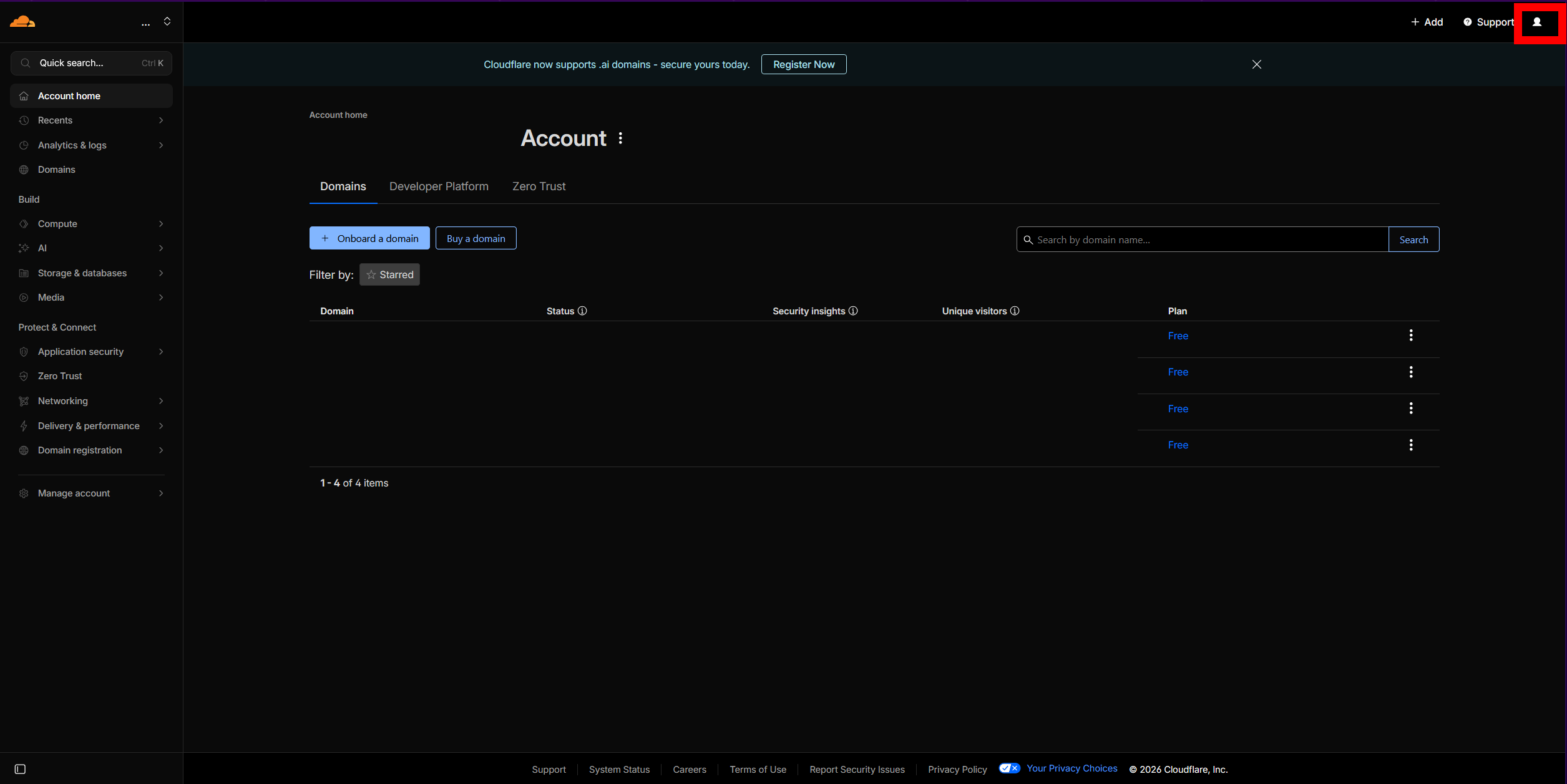
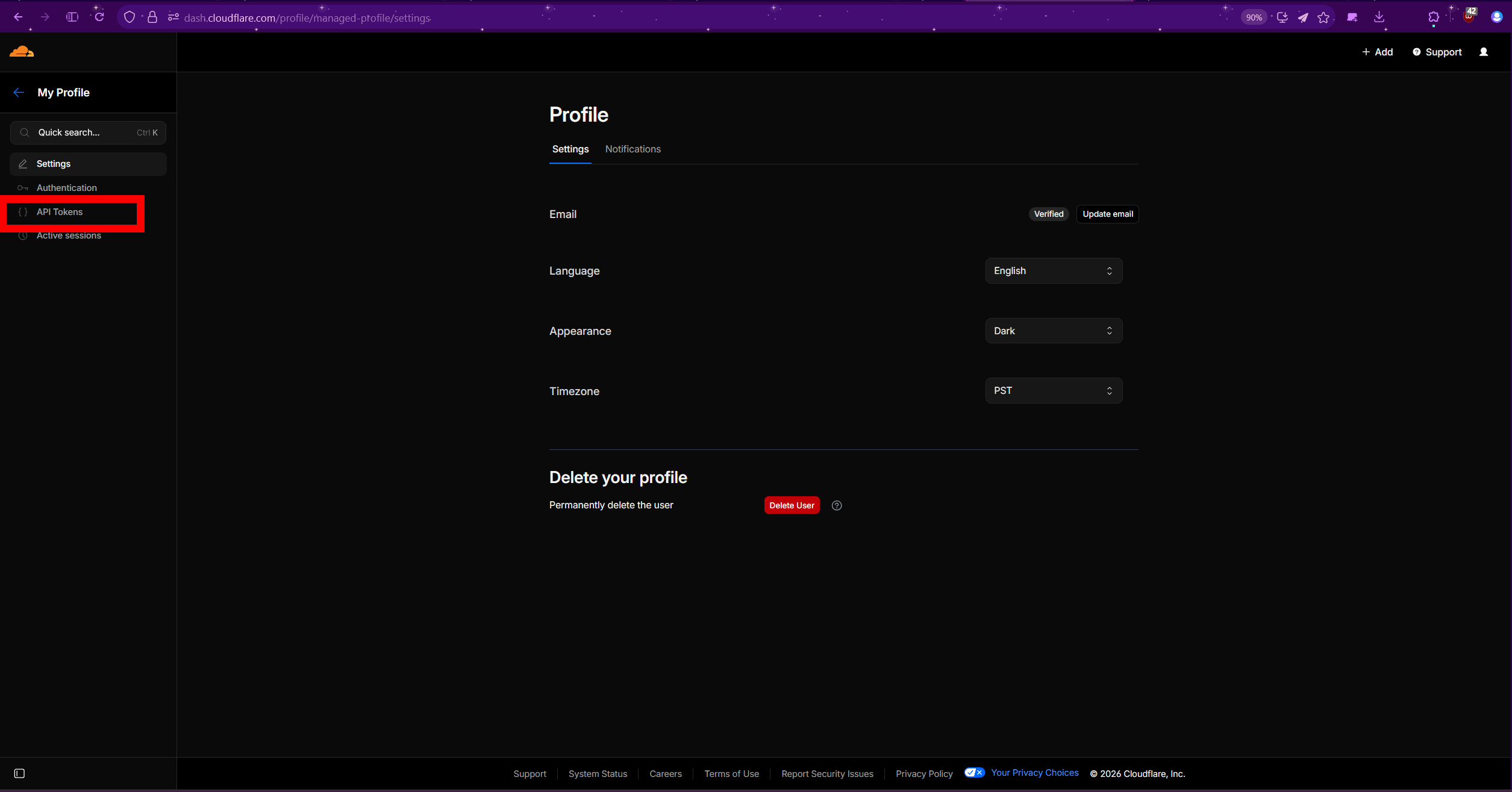
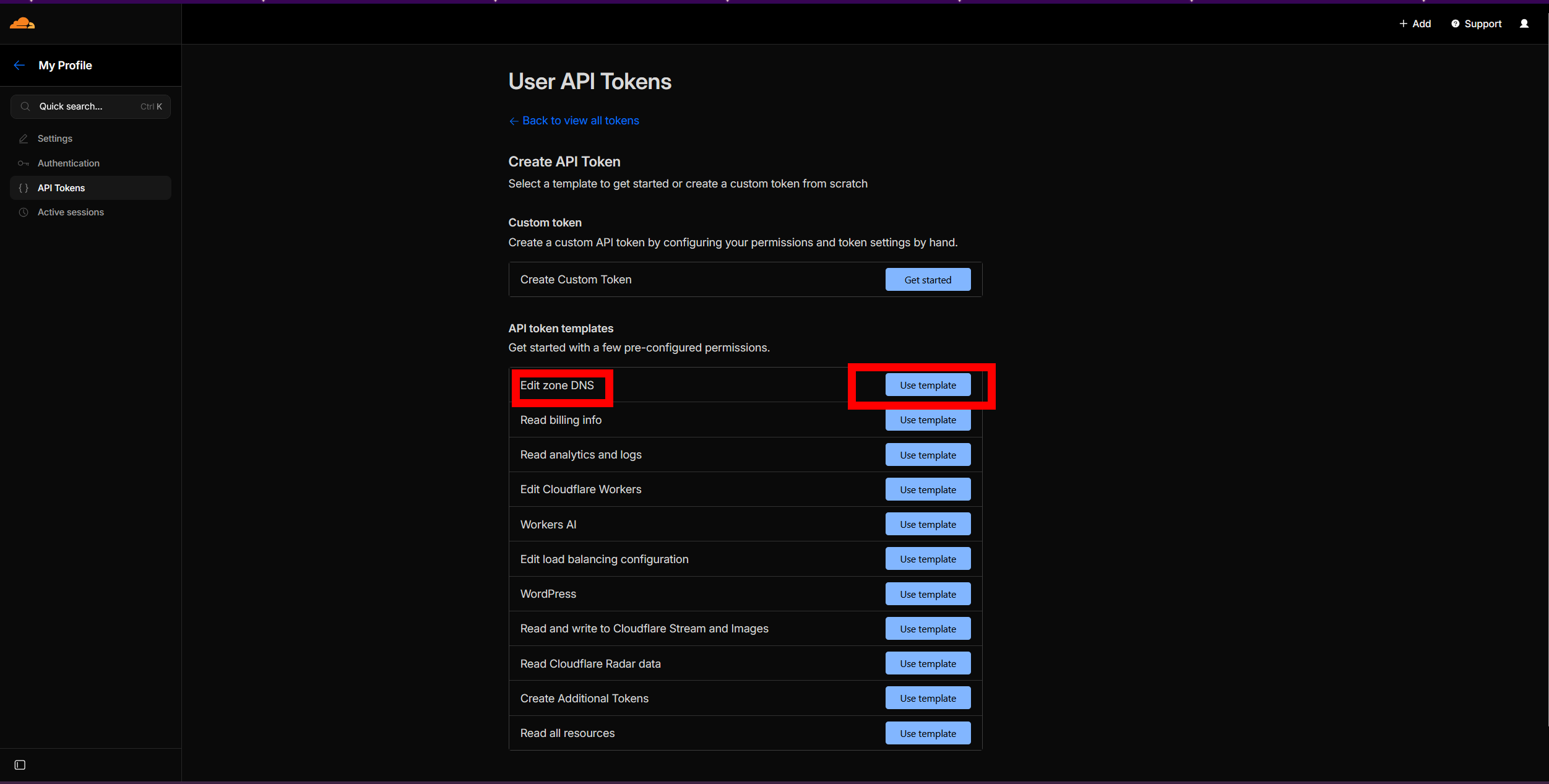
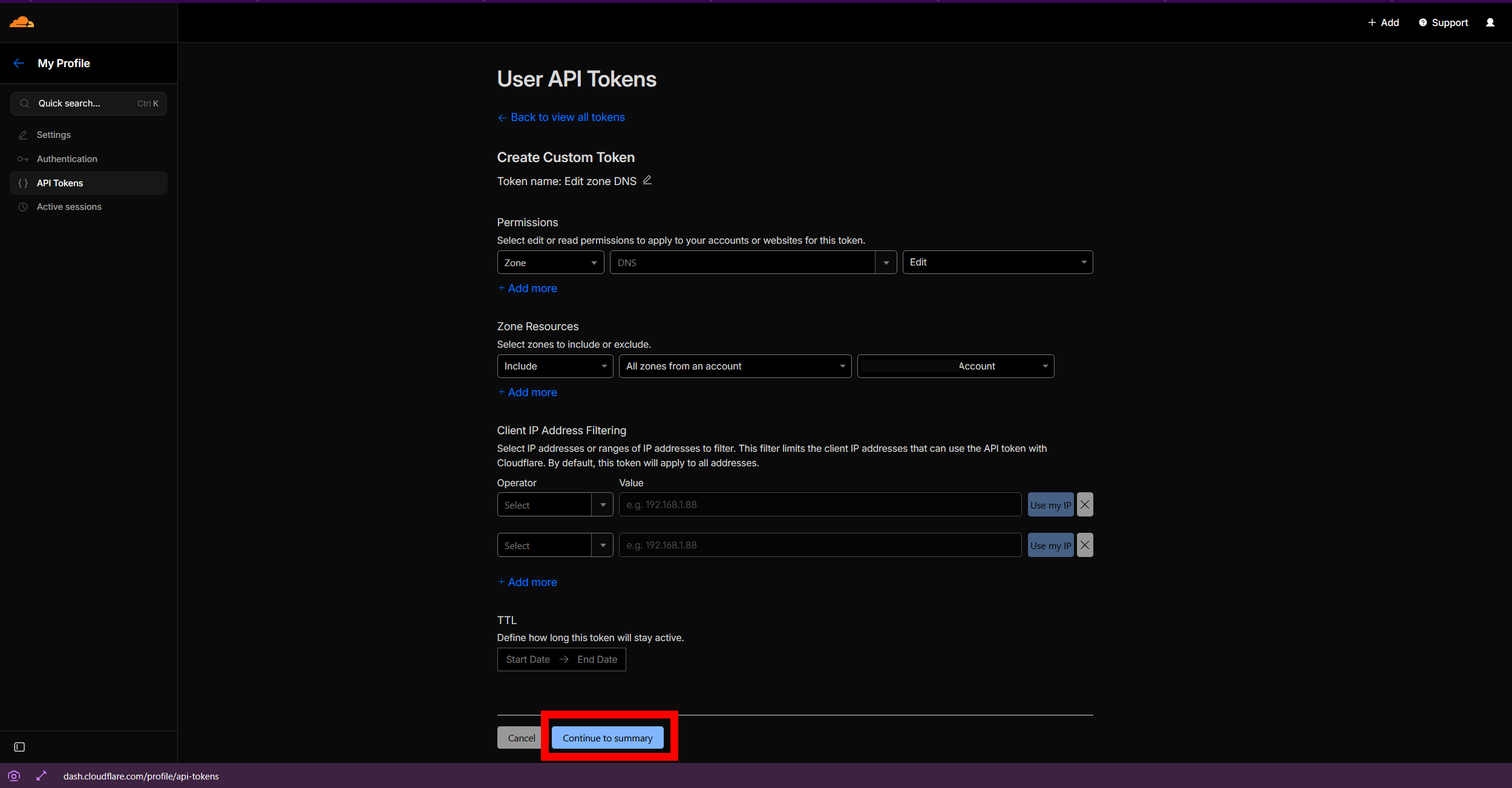
Follow the steps below in the Cloudflare dashboard:
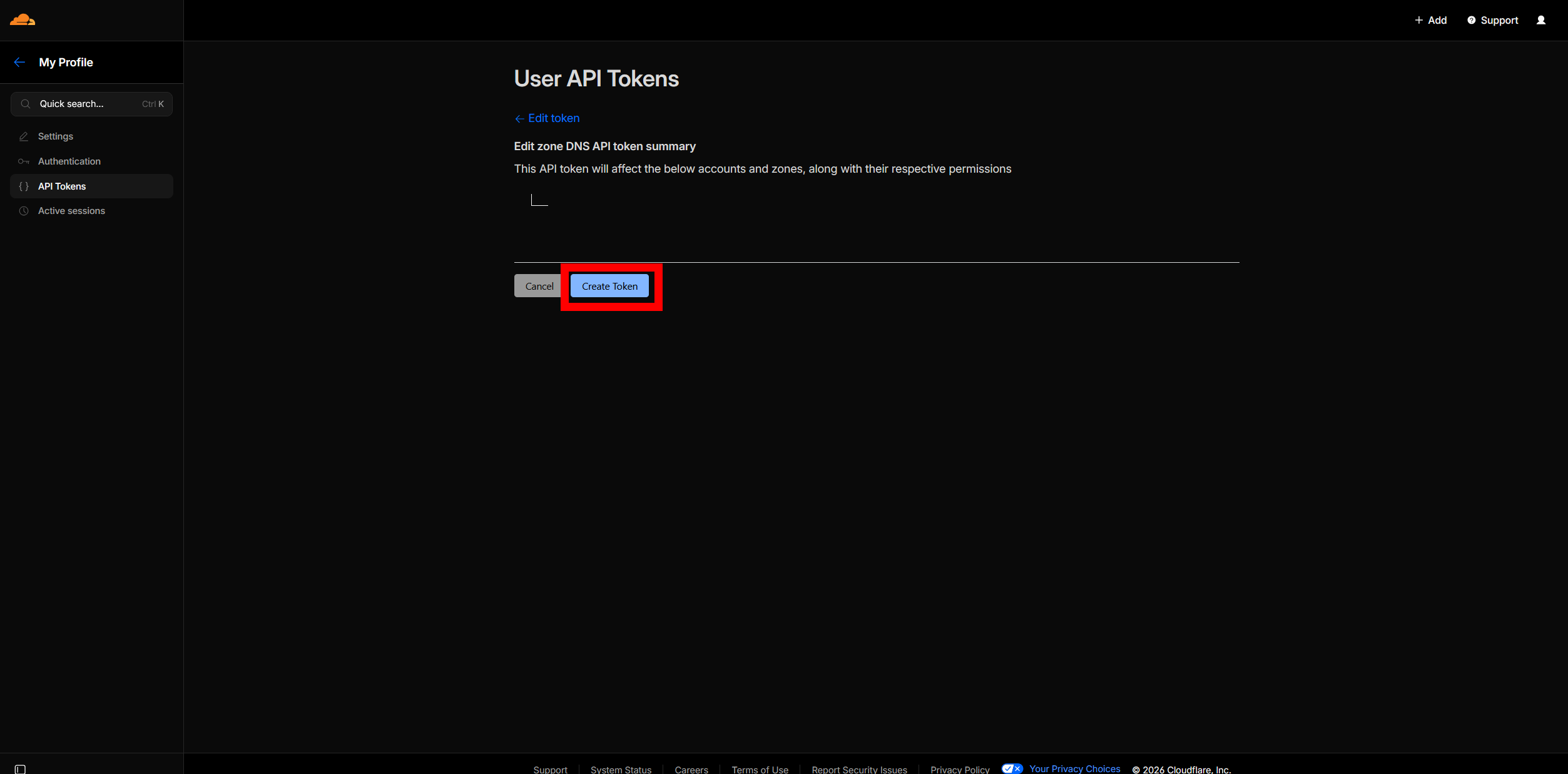
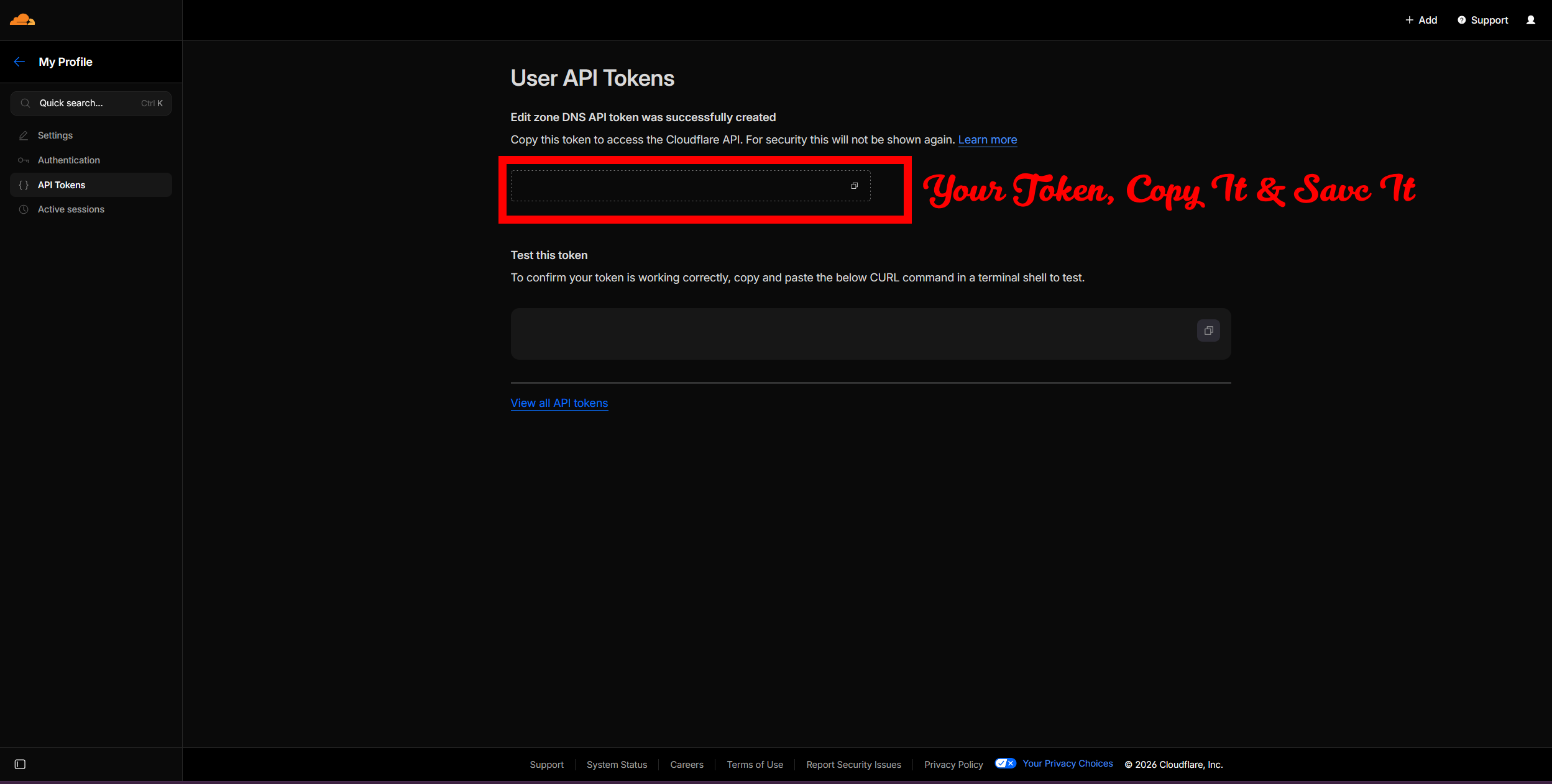
# Auto-SSL via Cloudflare DNS-01
SSL_DOMAIN=chat.example.com
SSL_EMAIL=[email protected]
SSL_DNS_PROVIDER=cloudflare
SSL_DNS_API_TOKEN=your-cloudflare-api-tokenCatRealm will automatically request a certificate from Let's Encrypt using the Cloudflare DNS challenge. Once issued, the server will serve HTTPS on port 443 and HTTP on your configured PORT.
SSL via Certbot
If you prefer to manage certificates manually, you can obtain them with Certbot and provide the paths to CatRealm.
sudo apt update
sudo apt install -y certbotUsing the standalone HTTP challenge (requires port 80 to be temporarily free):
sudo certbot certonly --standalone -d chat.example.com --email [email protected] --agree-tosCertificates are saved to /etc/letsencrypt/live/chat.example.com/.
# Manual certificate paths
SSL_CERT_PATH=/etc/letsencrypt/live/chat.example.com/fullchain.pem
SSL_KEY_PATH=/etc/letsencrypt/live/chat.example.com/privkey.pemCertbot installs a renewal cron job automatically. Ensure CatRealm reloads after renewal by adding a post-renewal hook:
# /etc/letsencrypt/renewal-hooks/post/catrealm.sh
#!/bin/bash
pm2 restart catrealm
chmod +x /etc/letsencrypt/renewal-hooks/post/catrealm.shAdvanced
Advanced configuration for power users and production deployments.
Host a Custom TURN Server
WebRTC voice chat works peer-to-peer for most users. However, users behind strict NAT or corporate firewalls need a TURN server to relay audio. By default, CatRealm uses public fallback TURN servers. For better reliability and privacy, host your own with coturn.
What is TURN?
- STUN — helps users discover their public IP. Most voice connections use STUN only (peer-to-peer).
- TURN — relays voice traffic when direct peer-to-peer fails (users behind strict NAT/firewall). Only ~20–30% of users typically need TURN.
1. Install coturn
sudo apt update
sudo apt install -y coturn

# Enable the service
sudo sed -i 's/#TURNSERVER_ENABLED=1/TURNSERVER_ENABLED=1/' /etc/default/coturn
2. Generate a TURN secret
# Generate a random 32-byte secret
TURN_SECRET=$(openssl rand -hex 32)
echo "Save this secret: $TURN_SECRET"
3. Configure coturn
Edit /etc/turnserver.conf:
sudo nano /etc/turnserver.confPaste the following configuration (replace the placeholder values):
# Listening port
listening-port=3478

# Your server's public IP (find with: curl -4 ifconfig.me)
external-ip=YOUR_PUBLIC_IP

# Media relay port range
min-port=49152
max-port=65535

fingerprint
lt-cred-mech
use-auth-secret
static-auth-secret=YOUR_TURN_SECRET_HERE

realm=catrealm
log-file=/var/log/turnserver.log
no-loopback-peers

# Block private IP ranges from relay
denied-peer-ip=0.0.0.0-0.255.255.255
denied-peer-ip=10.0.0.0-10.255.255.255
denied-peer-ip=172.16.0.0-172.31.255.255
denied-peer-ip=192.168.0.0-192.168.255.255
denied-peer-ip=127.0.0.0-127.255.255.255
4. Open firewall ports
# TURN server port
sudo ufw allow 3478/tcp
sudo ufw allow 3478/udp

# Media relay port range
sudo ufw allow 49152:65535/udp
5. Start coturn
sudo systemctl enable coturn
sudo systemctl start coturn
sudo systemctl status coturn
6. Configure CatRealm to use your TURN server
Add the following to your .env in CatRealm:
TURN_MODE=custom
TURN_HOST=turn.example.com
TURN_PORT=3478
TURN_TLS_PORT=5349
TURN_SECRET=your-turn-server-secret
Resource Usage
| Resource | Typical Usage |
|---|---|
| CPU | 5–10% per 10 concurrent voice relay users |
| RAM | ~50 MB base + ~5 MB per active relay session |
| Bandwidth | ~50–100 KB/s per relayed voice stream (only ~20–30% of users need relay) |
Security Notes
- The TURN secret is never exposed to clients — the server generates time-limited credentials.
- Private IP ranges are blocked from relay (see config above).
- For production, configure TLS on port 5349: uncomment
cert=andpkey=inturnserver.conf. - Remove
verbosefrom the coturn config in production to reduce log noise.
turn:YOUR_IP:3478 and click "Gather candidates" — you should see relay candidates appear.